Project budget & payment tracker
Where every dollar on the build went.
Budget against paid for each trade, every payment with its receipt status, and the change orders that moved the numbers. Click a category to see its payments.
- Project
- Example new build
- Site
- 00 Example Lane
- Numbers as of
- Nov 16, 2026
Remaining balance
$0
Revised budget
$0
Paid to date
$0
Pending change orders
$0
Missing receipts
0
Budget vs paid
By category
Revised budget = original budget + approved change orders. Pending change orders are not counted until approved. Example data
Payments log
Every payment, with its receipt
| Date | Paid to | Category | Method | Paid from | Amount | Receipt |
|---|---|---|---|---|---|---|
| Total | $0 | |||||
Change orders
What changed, and who signed
The spreadsheet
Same numbers, in a real workbook.
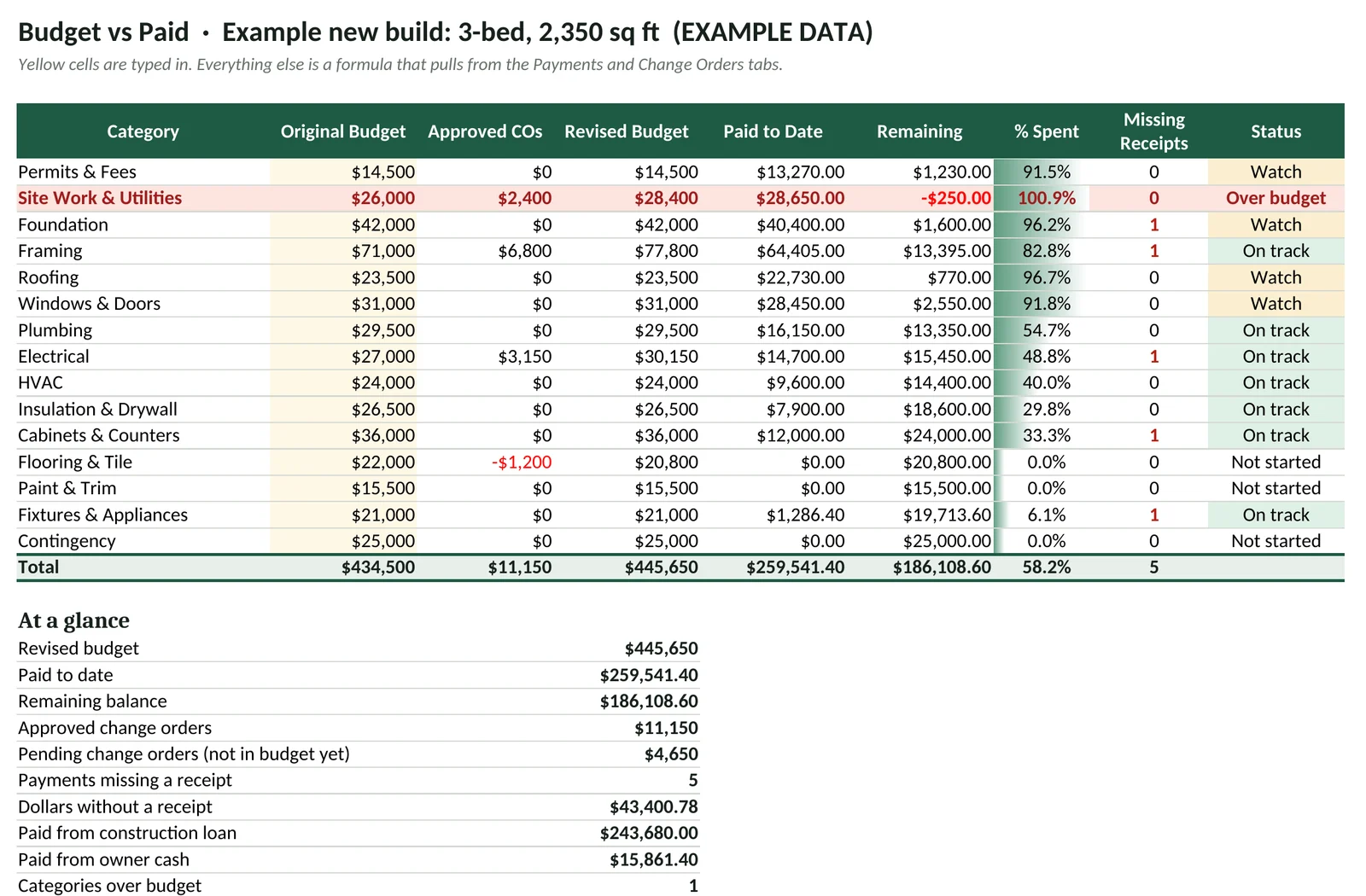
The dashboard reads from the same example data as the Excel file. In the workbook, you type the budget once and log payments as they go out. The rollups are plain formulas, so nothing breaks when a row is added.
Download the .xlsxTamarack-budget-tracker-DEMO.xlsx · 5 tabs · opens in Excel, Google Sheets or Numbers. Example data.
- Budget vs Paid
Original budget, approved change orders, paid, remaining and % spent per category. Over-budget rows turn red; a status column says Watch at 90%.
=SUMIFS(Payments!F:F, Payments!C:C, A5) - Payments
Date, vendor, category, draw, invoice, amount, method, source, receipt. Dropdowns on category, method, source and receipt. No receipt turns the row red and flags it.
=IF(I5<>"Yes", "MISSING RECEIPT", "") - Change Orders
Approved, pending or declined, signed or not. Only approved ones change the budget; approved but unsigned ones get flagged.
=SUMIFS(…Amount, …Category, A5, …Status, "Approved") - Read Me + Lists
How to start with your own numbers, and the dropdown choices in one place. Categories come straight from the budget tab.
CategoryList → 'Budget vs Paid'!A5:A19